Select region and language
How‑to TIPS Vol. 3

The smiles of your loved ones are treasures.
Just seeing a smile makes you happy, doesn’t it?
Even more so when it’s from someone you cherish — your own smile follows. From all the photos you took, why not gather the smiling shots that are treasures?
Pre‑create a [Smiles] rule in image.canon to automatically extract smile photos from the large uploads coming from Canon cameras.
How to use
An easy way to collect Smiles.
First, set conditions under [Faces and facial expressions].

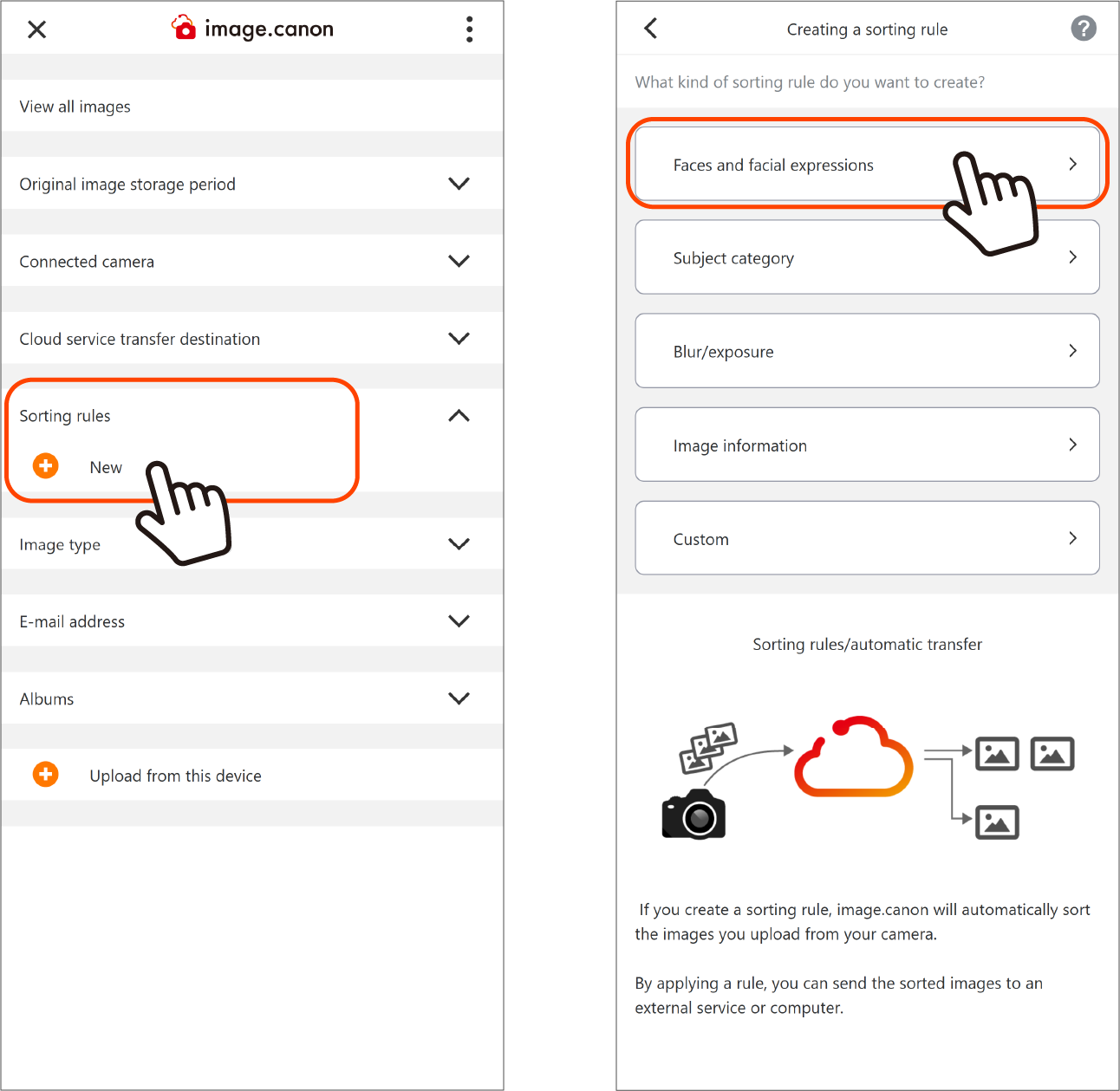
1. On the main menu, click the New button for [Sorting rules] to open the rule creation screen.
2. On the rule creation screen, press the [Faces and facial expressions] button and specify the rule.
Tip: Giving your sorting rule a clear name makes it easier to find later.
3. From the selection list, choose [Smiles]. That’s it — [OK].
4. Click Create to save the rule.
Next, upload your data from the camera to image.canon.
View uploaded photos with sorting rules applied

You can check from the main menu.
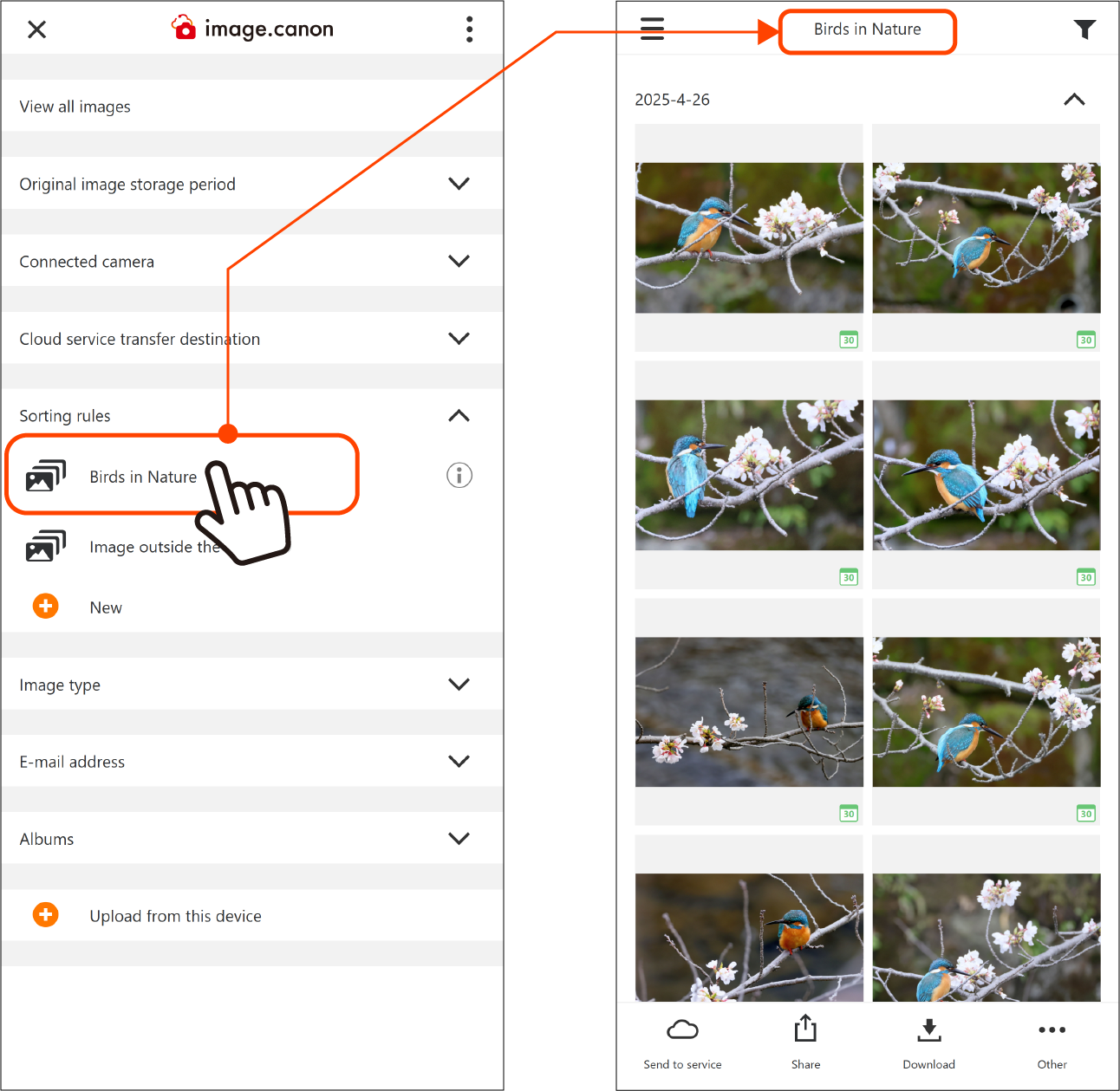
Click a sorting rule name on the main menu to display the photos it sorted.
Click [Image outside the rules] to display the other photos.
Click [View all images] at the top of the main menu to display every photo stored in image.canon.