Select region and language
How-to Tips Vol.4
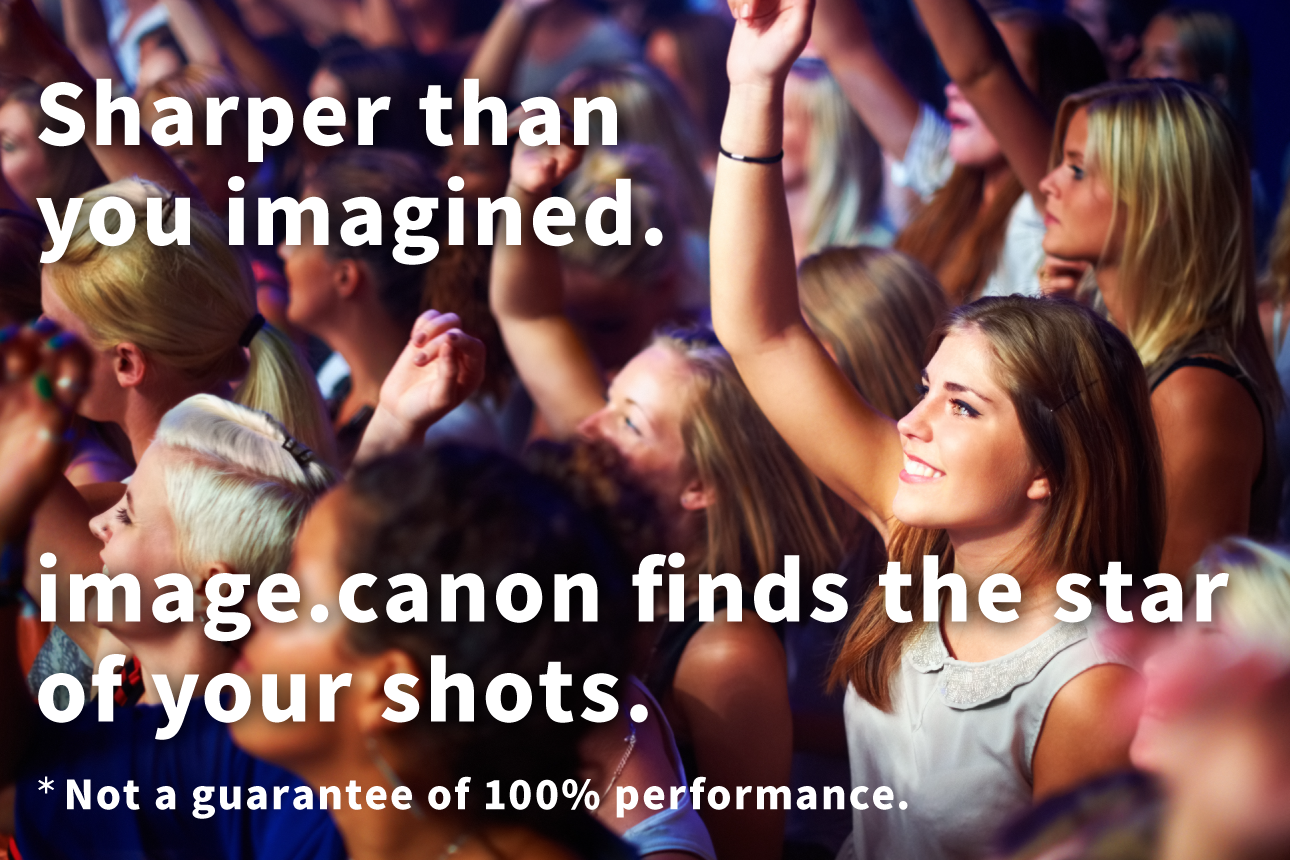
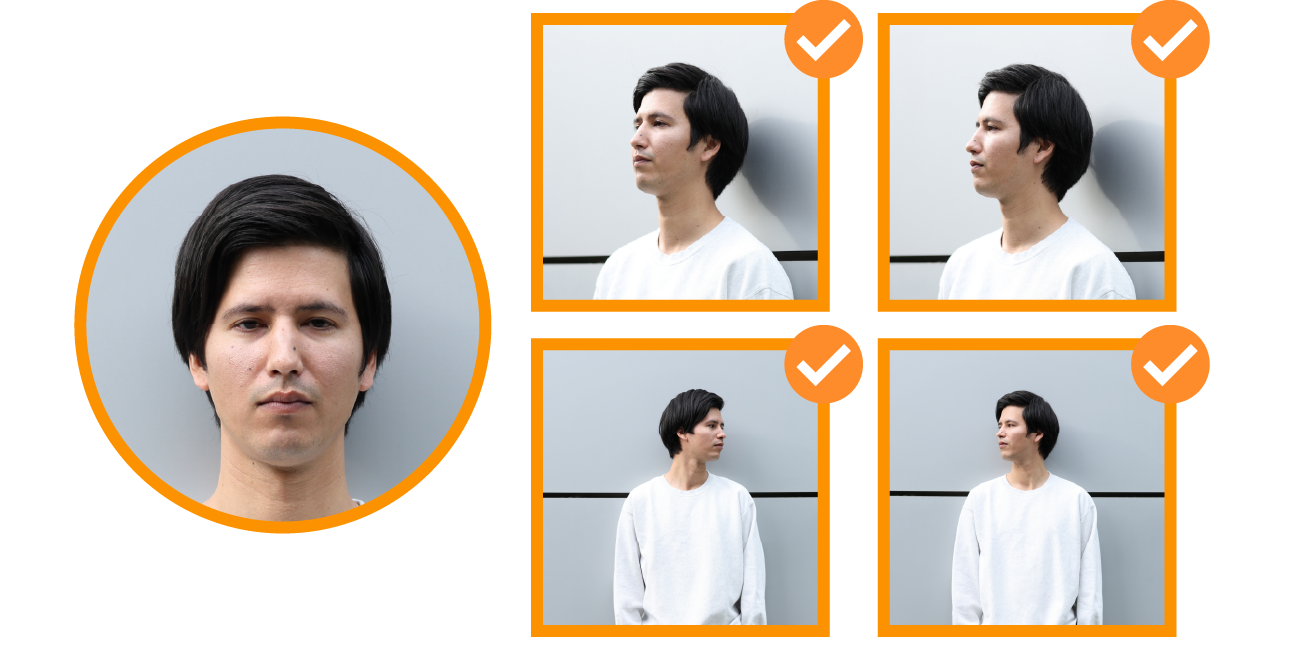
The face detection (people sorting) feature identifies the main subject’s face—even when it appears small in a crowd or in profile.
When shooting in situations with many people, focusing on only a specific model is extremely difficult. Also, selecting images where the face is in focus and removing shots with closed eyes from a huge amount of data is time-consuming hard work.
If you create sorting rules in image.canon in advance based on [registered people] and [image quality], the service will automatically extract good shots of the model from the many files uploaded from your Canon camera—even if the face is in profile or appears small.
How to use
Easy to set up in just a few steps
First, register the main subject’s face.
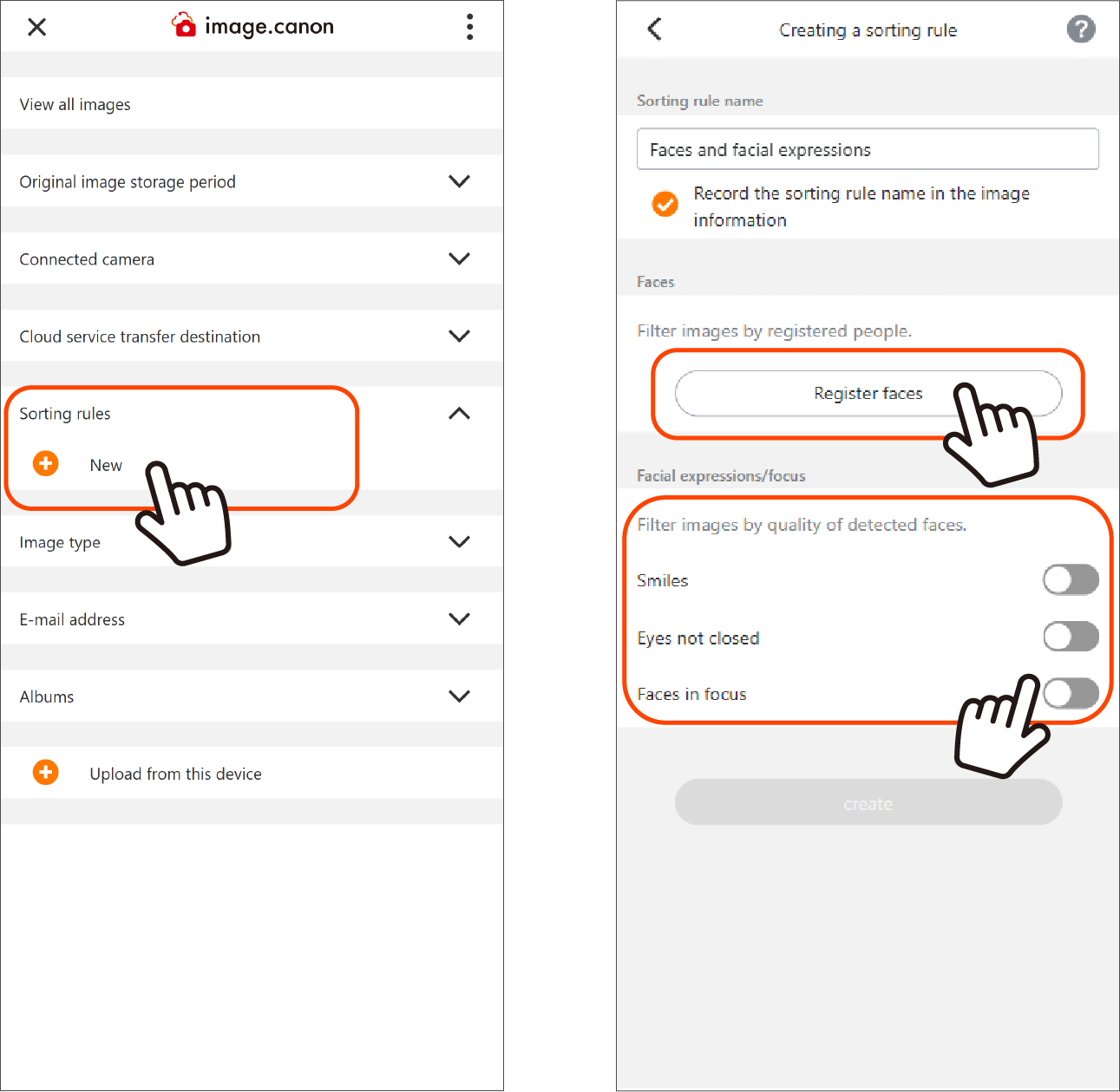
1. On the main menu screen, press the New button in [Sorting rules] to open the sorting rule creation screen.
2. On the sorting rule creation screen, press [Faces and facial expressions] and specify the rule.
* Tip: Give the sorting rule an easy-to-understand name so you can find it later.
3. Press [Register faces] to go to the next screen.
4. Select a face photo of the model saved on your smartphone or PC, enter a name, and tap [OK] to complete registration.
5. Finally, choose the filter criteria based on how well the recognized face is captured (3 items).
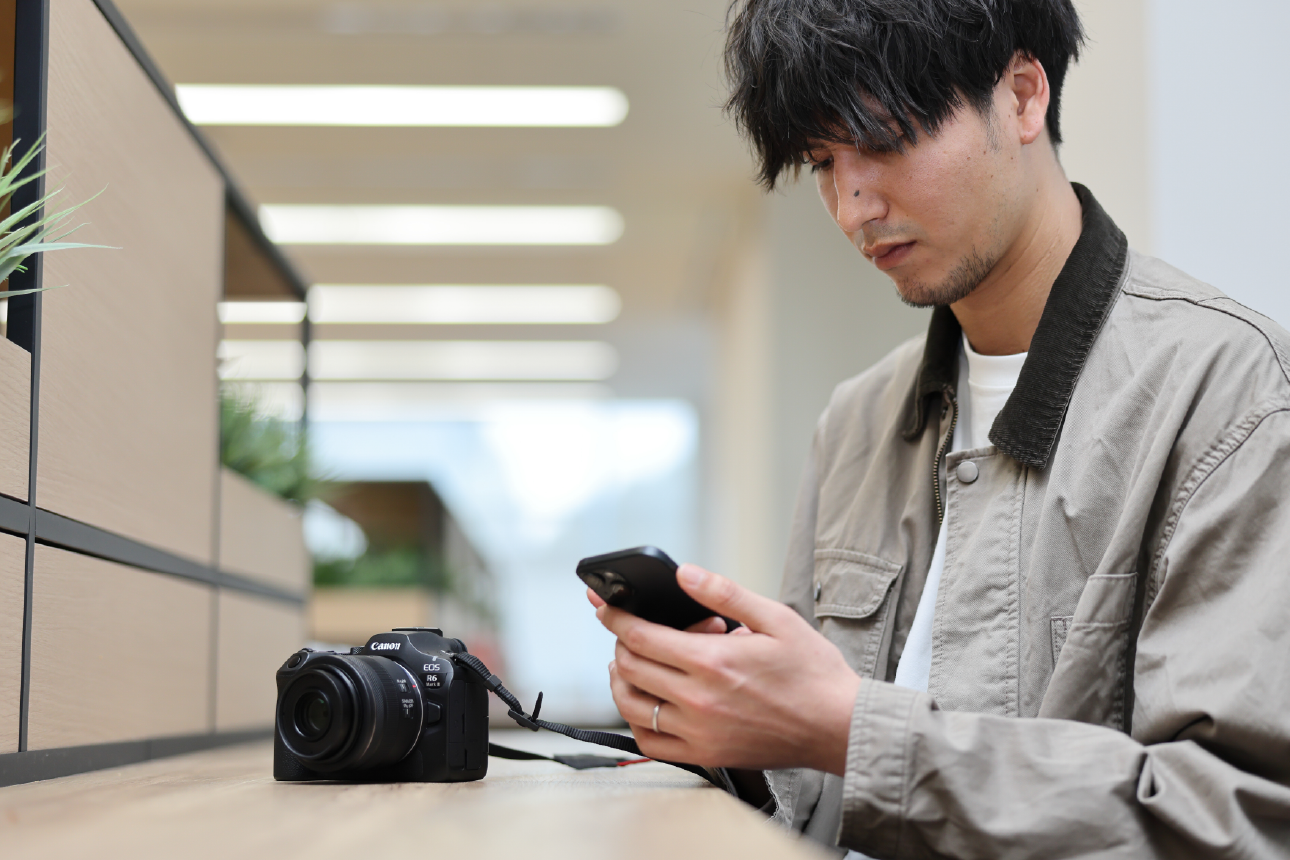
Next, upload data from your camera to image.canon.
View uploaded photos with sorting rules applied
You can check it from the main menu.
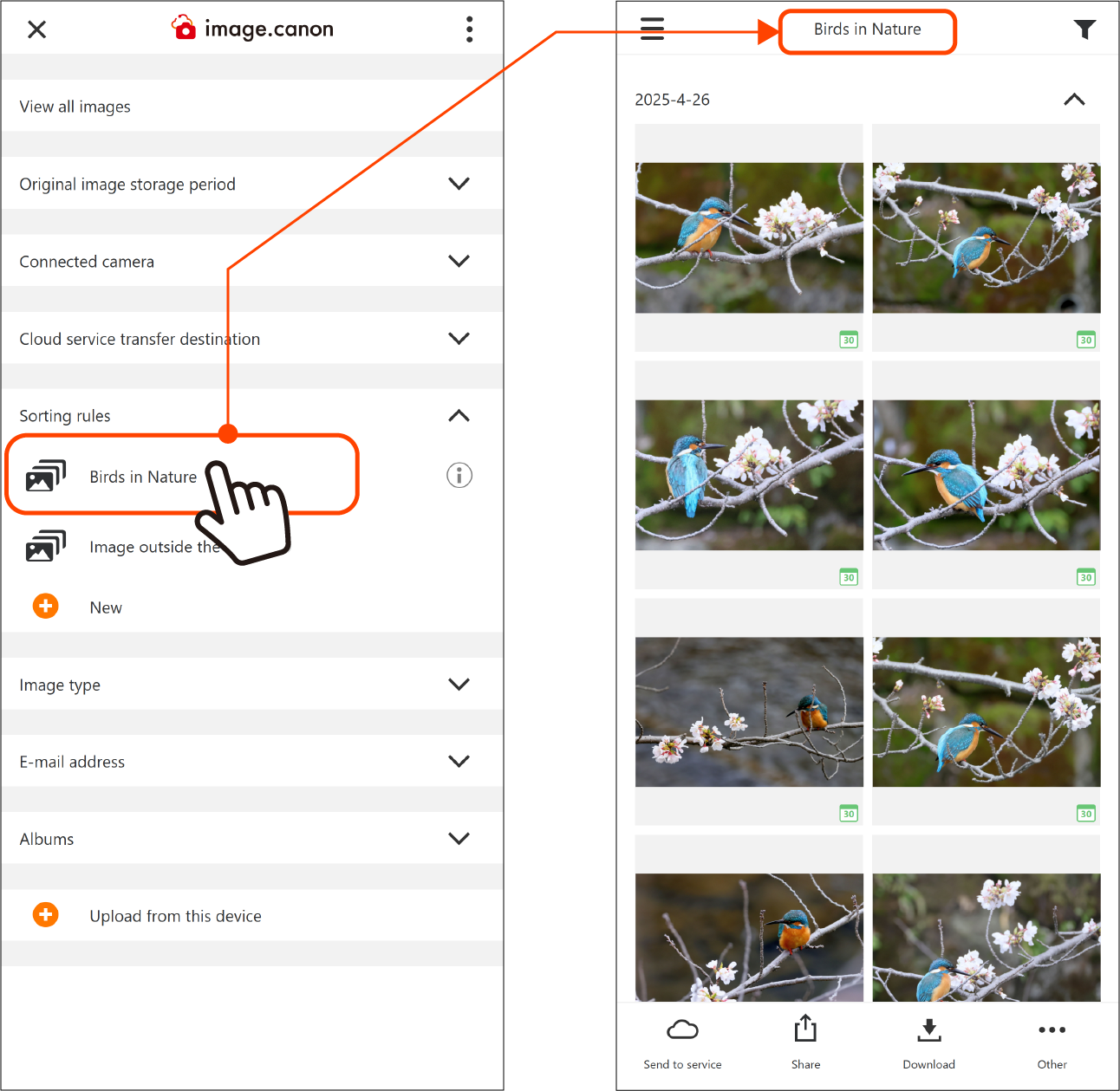
On the main menu screen, click the sorting rule name to display the sorted photos.
Click [Image outside the rules] to display the other photos.
Click [View all images] at the top of the main menu to display all photos stored in image.canon.