Select region and language
Usage Tips Vol.5

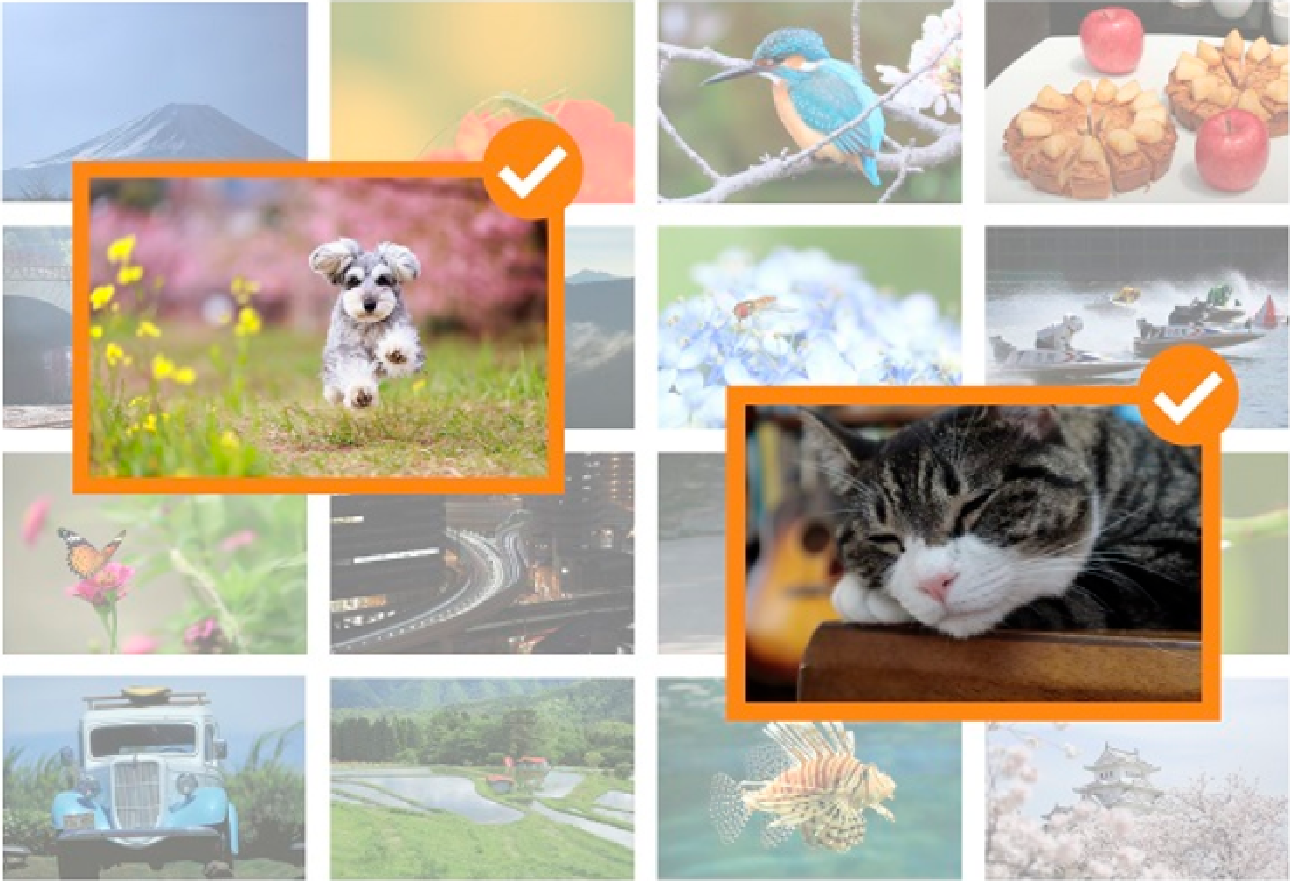
Sorting rules’ Subject category is the perfect way to collect what you love—and share albums effortlessly!
Whether in everyday life or on a themed photo walk, when you stumble upon something you love, you can’t help but press the shutter, right?
Create Sorting rules for your favorites with [Subject category] in image.canon. Then, every time you upload from your Canon camera, image.canon automatically finds and picks out photos that match what you love.
Apply the same rule to Auto Transfer to Google Photos, and albums come together in no time.
How to use
Register in just a few simple steps
First, register the category you want to collect.
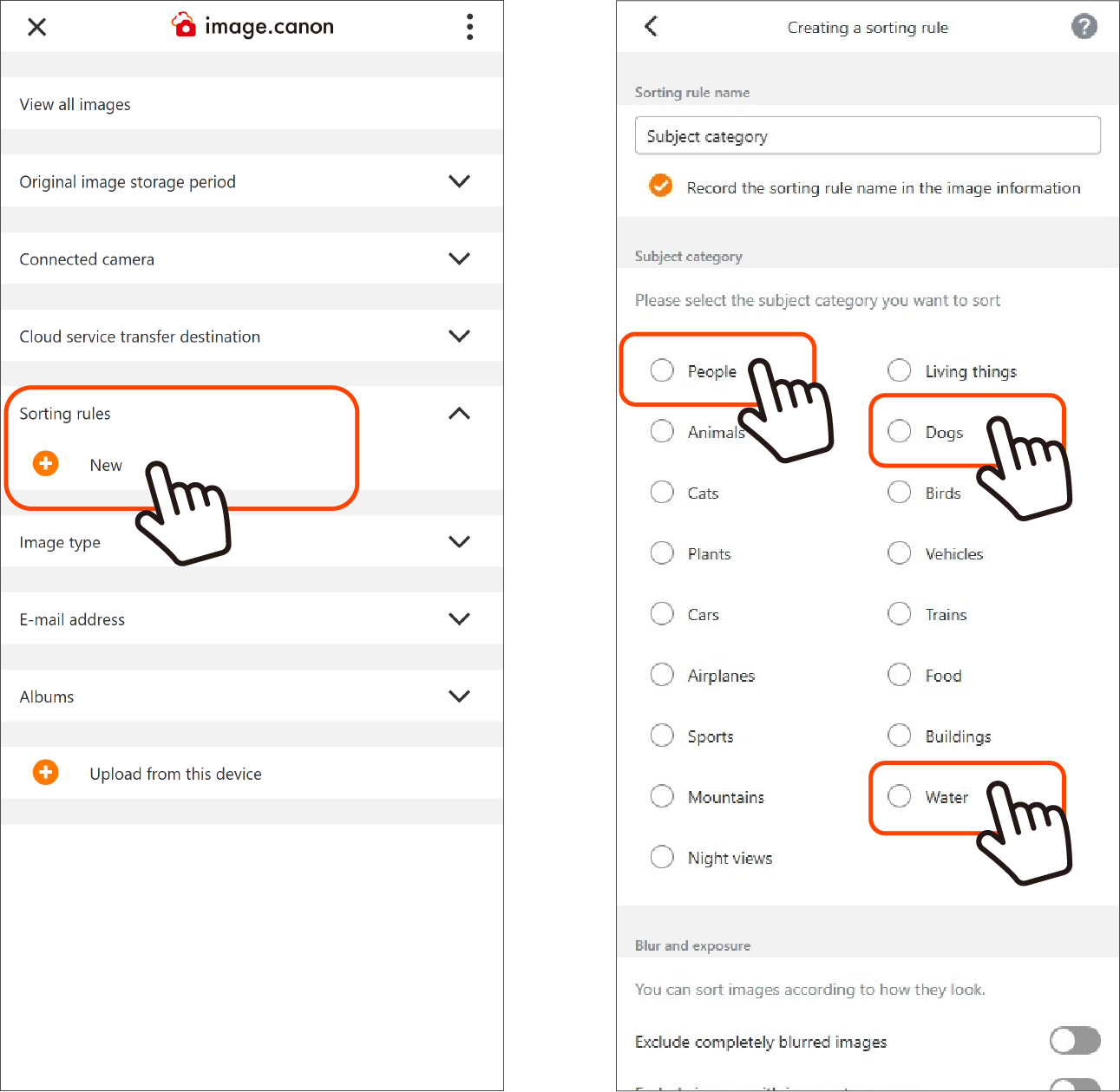
1. On the main menu screen, press the New button under [Sorting rules] to open the sorting rule creation screen.
2. On the sorting rule creation screen, press [Subject category] and select a category.
※Multiple selection is possible!
※Giving the sorting rule an easy-to-understand name makes it easier to find later.
3. Press [create] to complete registration.
Next, set up the connection between image.canon and Google Photos.
Step 1: Connect to Google Photos
Step 2: Apply your Sorting rules

You can sign in to Google Photos and grant image.canon access right in the app.
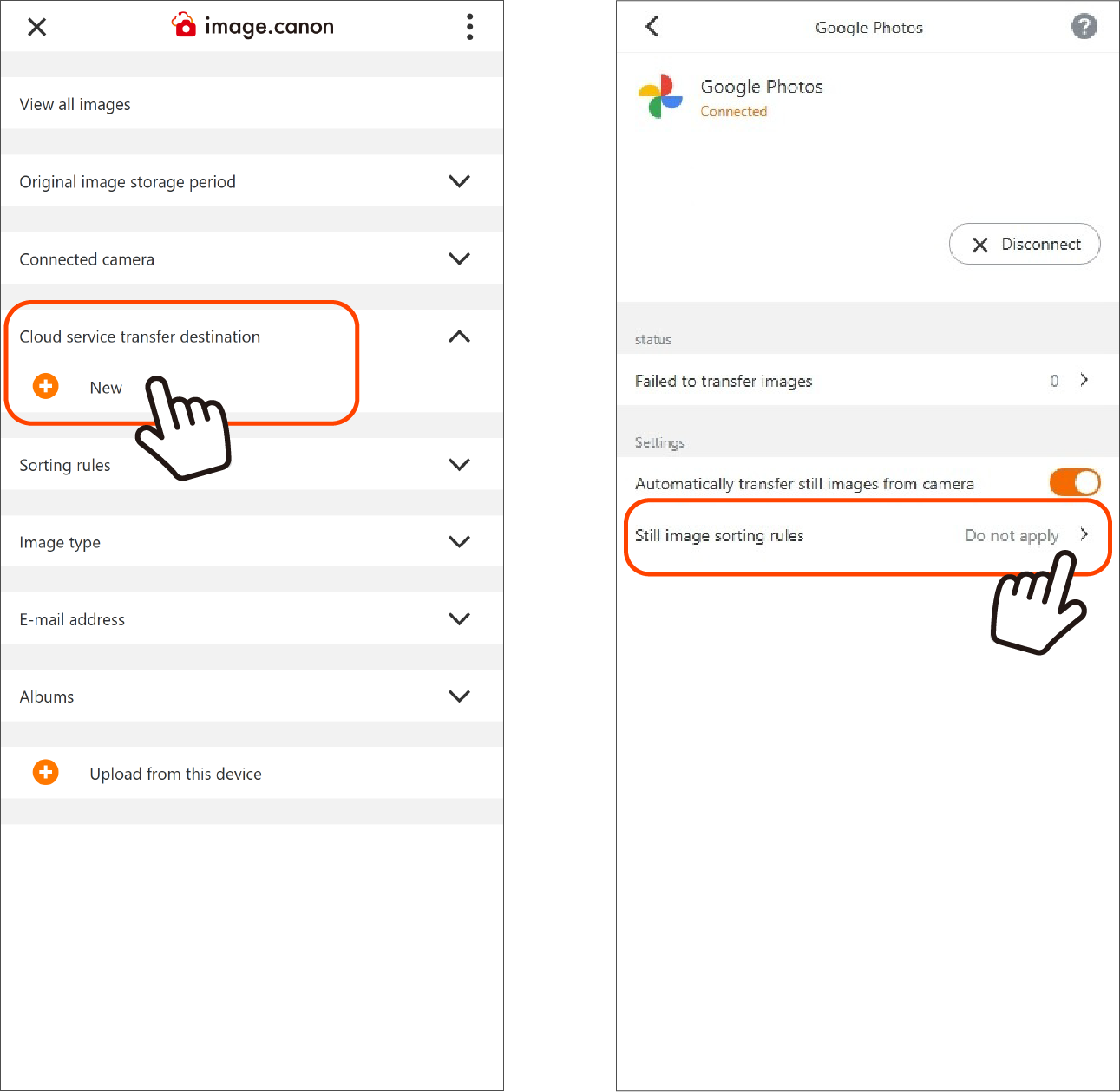
1. On the main menu screen, press the New button under [Cloud service transfer destination] to open the service connection menu screen.
2. From the list, select the service to connect (Google Photos) and open the settings screen.
3. Press [Connect] to open the Google sign-in screen.
4. Sign in and allow image.canon access.
※If you don't have a Google account, create one in advance using a browser, etc.
5. After setup, Google Photos will appear under Cloud service transfer destination on the main menu screen. Press the [i] button to the right of the name to go to the settings screen.
6. You can turn automatic transfer on/off and configure whether to apply Sorting rules.