Select region and language
How-to Tips Vol.6

You can create sorting rules that exclude blurry photos and photos with incorrect exposure.
Google Drive is very convenient because you can access it from anywhere on your smartphone or PC. But it can be so convenient that before you know it, unnecessary files pile up and your storage can run out…
If you create sorting rules in image.canon in advance using [Blur and exposure], you can exclude fully blurred photos and failed shots that are under- or overexposed from the many files uploaded from your Canon camera. Not uploading failed shots to cloud storage—small improvements like this add up.
How to use
Easy to set up in just a few steps
First, set up the sorting rule.

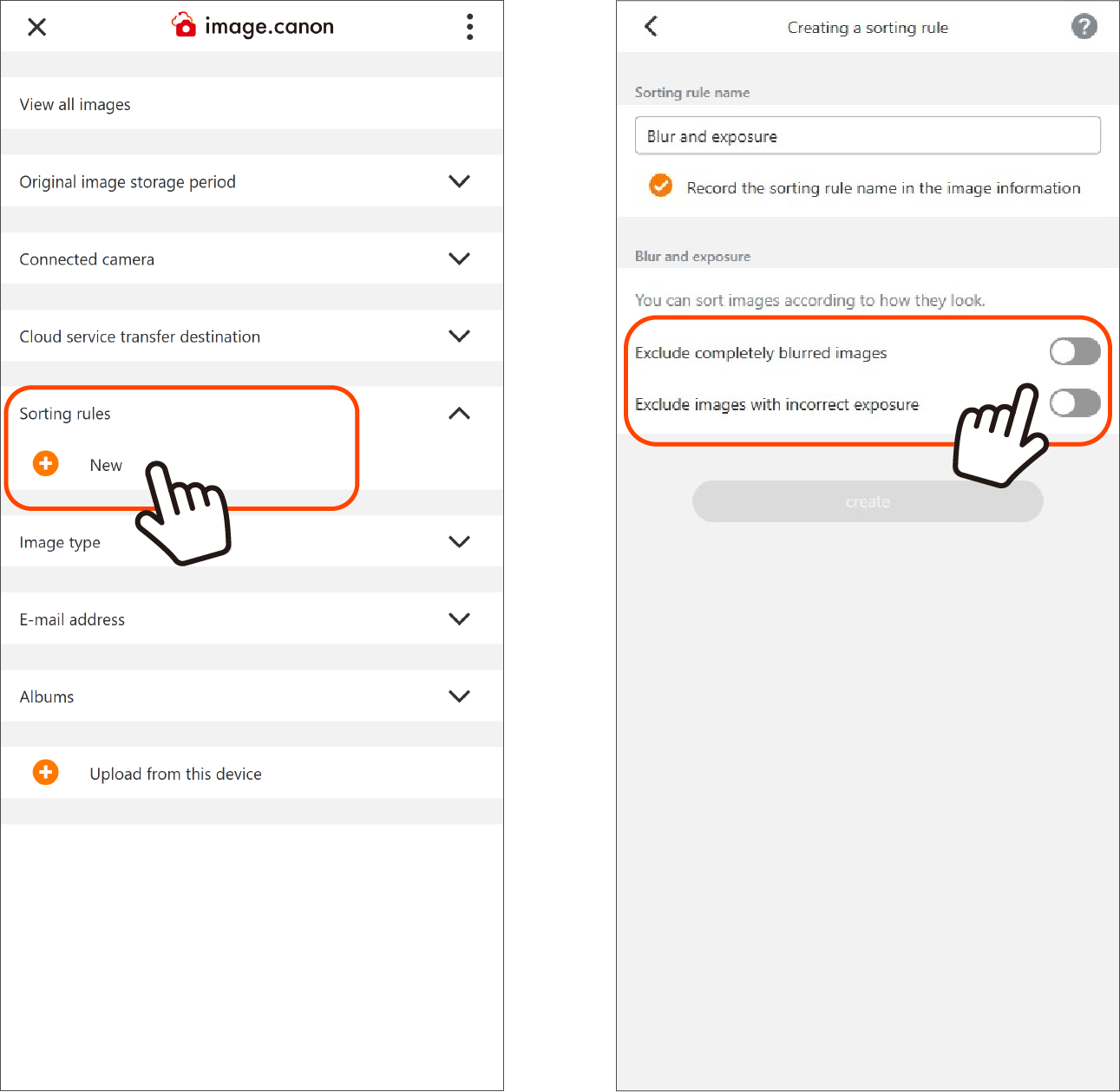
1. On the main menu screen, press the New button under [Sorting rules] to open the sorting rule creation screen.
2. On the sorting rule creation screen, press [Blur/exposure] and specify the rule.
※Giving the sorting rule an easy-to-understand name makes it easier to find later.
3. Turn ON the toggle buttons for [Exclude completely blurred images] and [Exclude images with incorrect exposure].
4. Press [create] to complete registration.
The next step is to set up the connection between image.canon and Google Drive.
Step 1: Connect to Google Drive
Step 2: Apply sorting rules

You can also set up Google Drive login and grant image.canon access within the app.
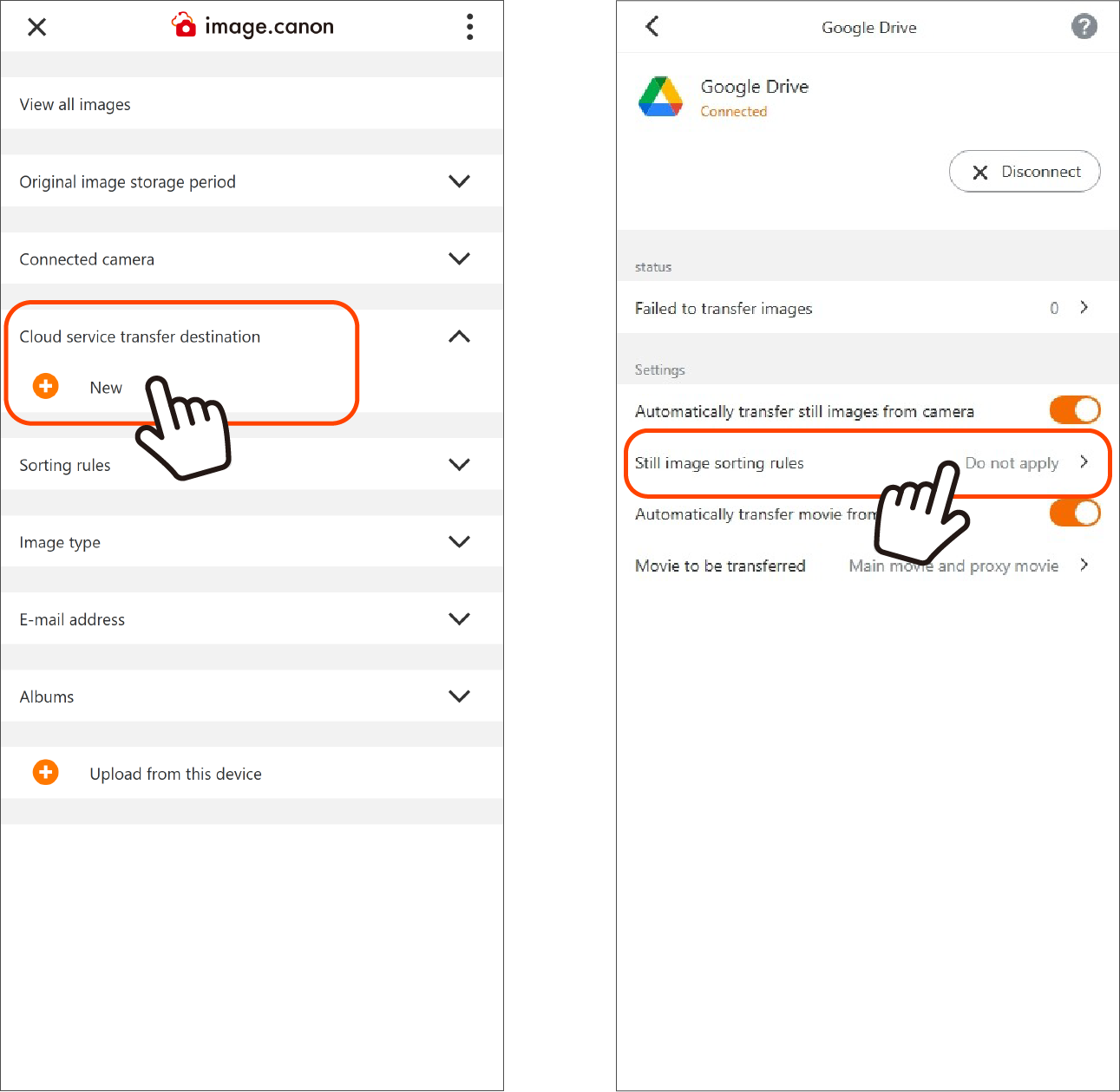
1. On the main menu screen, press the New button for [Cloud service transfer destination] to go to the service connection menu screen.
2. From the list, select the service to connect (Google Drive) and open the settings screen.
3. Press the [Connect] button to open the Google sign-in screen.
4. Sign in and allow access to image.canon.
※ If you do not have a Google Account, please create one in advance using a browser, etc.
5. After setup, Google Drive appears under the Cloud service transfer destination on the main menu screen; press the [i] button to the right of the name to go to the settings screen.
6. You can enable/disable automatic transfer and configure whether to apply Sorting rules.