Select region and language
Tips for Using Vol.8
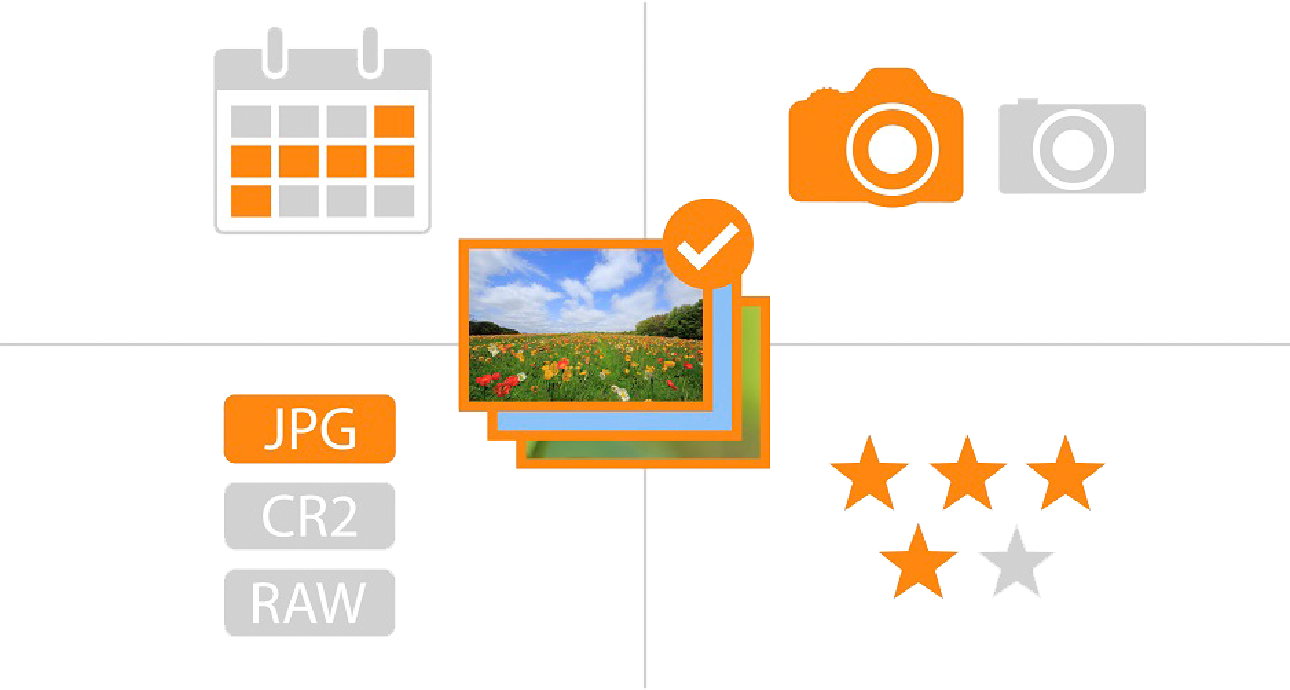
You can sort photos by the camera used, image type, rating, and shooting date.
[Collect only RAW files from your shots], [collect only lightweight JPEGs for sharing], [collect by the rating you set in-camera], and more—sorting by shooting information helps organize huge amounts of photo data and keeps your workflow to editing smooth.
If you create [Image information] Sorting rules in image.canon in advance, it will automatically extract photos that match your conditions from the large amount of data you upload from your Canon camera, and you can download them separated into subfolders.
How to use
Register in just a few easy steps
First, choose the shooting information you want to extract.
Multiple selections are possible.
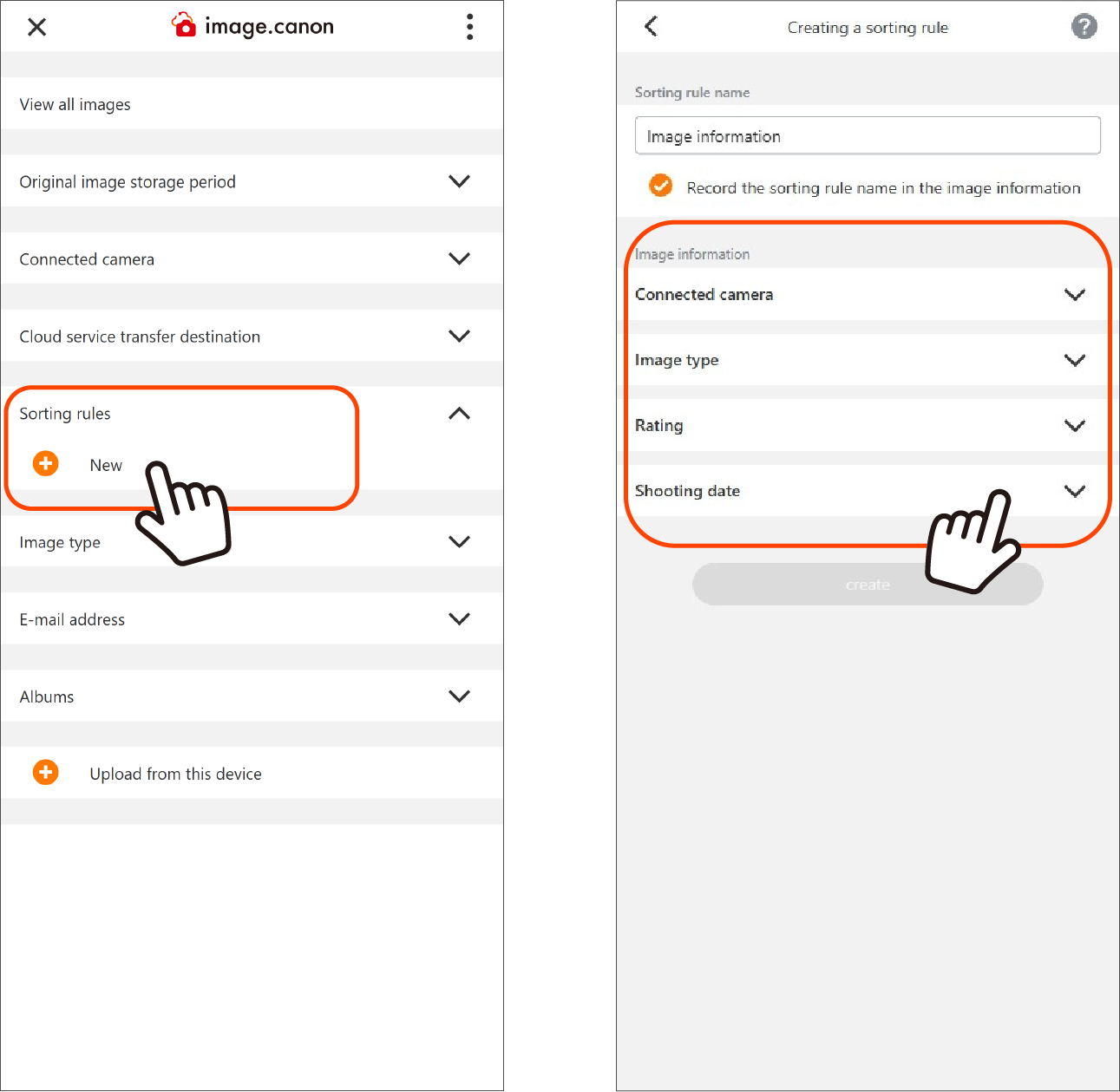
1. On the main menu screen, press the New button for [Sorting rules] to go to the sorting rule creation screen.
2. On the sorting rule creation screen, press the [Image information] button and specify the rules.
※ If you give the sorting rule an easy-to-understand name, it will be easier to find later.
3. Open the menus for [Connected camera], [Image type], and [Rating], and check the applicable items. For [Shooting date/time], you can select the start and end date and time.
4. Press the [create] button to finish.
Next, upload data from your camera to image.canon.
Download sorted photos to your PC

Software settings
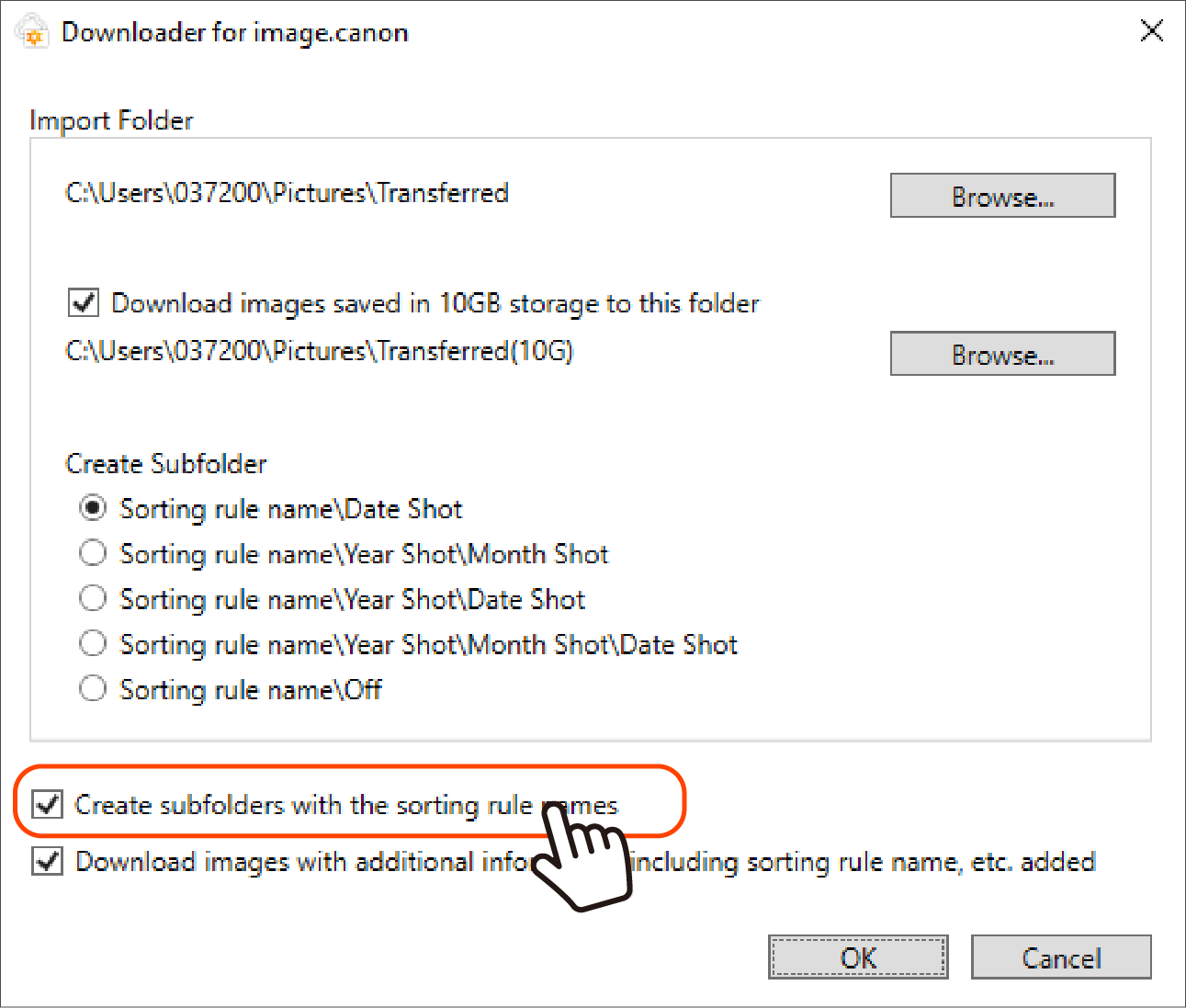
When you check [Create subfolders with the sorting rule names] in Downloader for image.canon, two folders—the sorting rule name subfolders and Image outside the rules—are created automatically and downloaded to your PC automatically.