Select region and language
Tips for Using Vol.9
Enhance connectivity with Camera Connect even further.
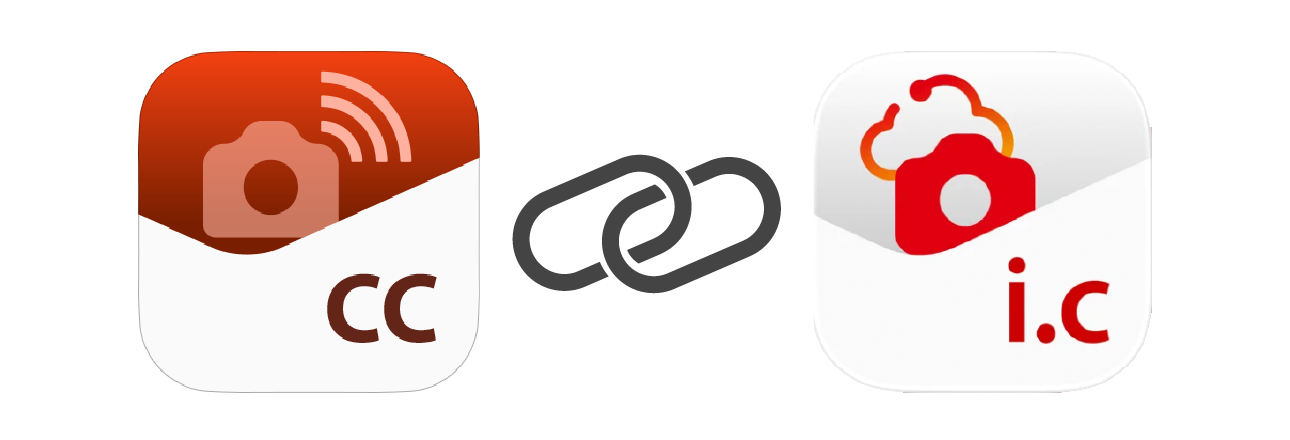
When services connect, convenience increases and the experience becomes more enjoyable. The handy Camera Connect app, which lets you connect your smartphone and camera for remote shooting and image import, now works with image.canon.
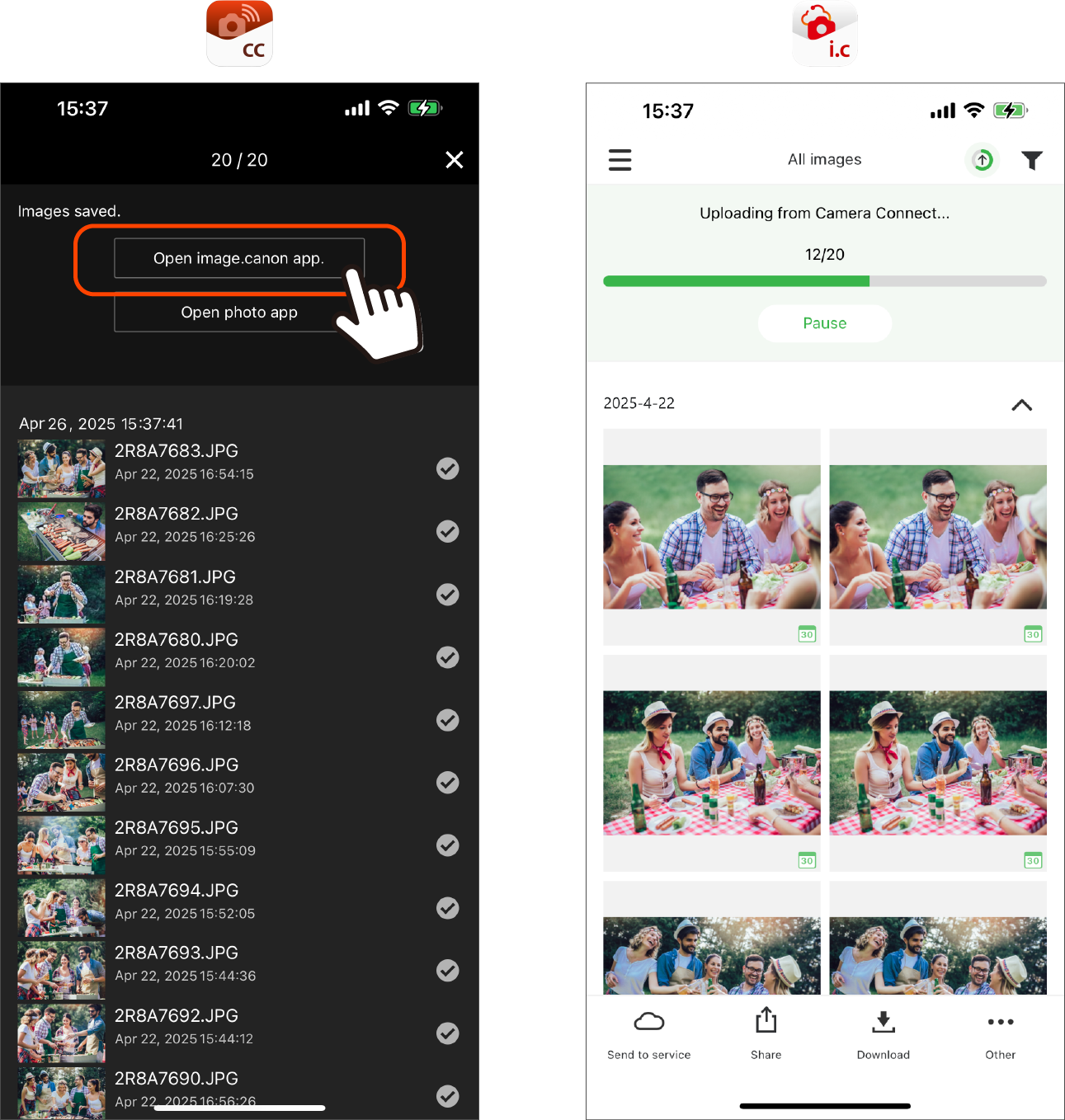
If you set this up in the image.canon app in advance, a [Open image.canon app] button appears when you import photos or videos via Camera Connect, enabling one-click automatic uploads.
How to use
Linking is completed with image.canon settings alone
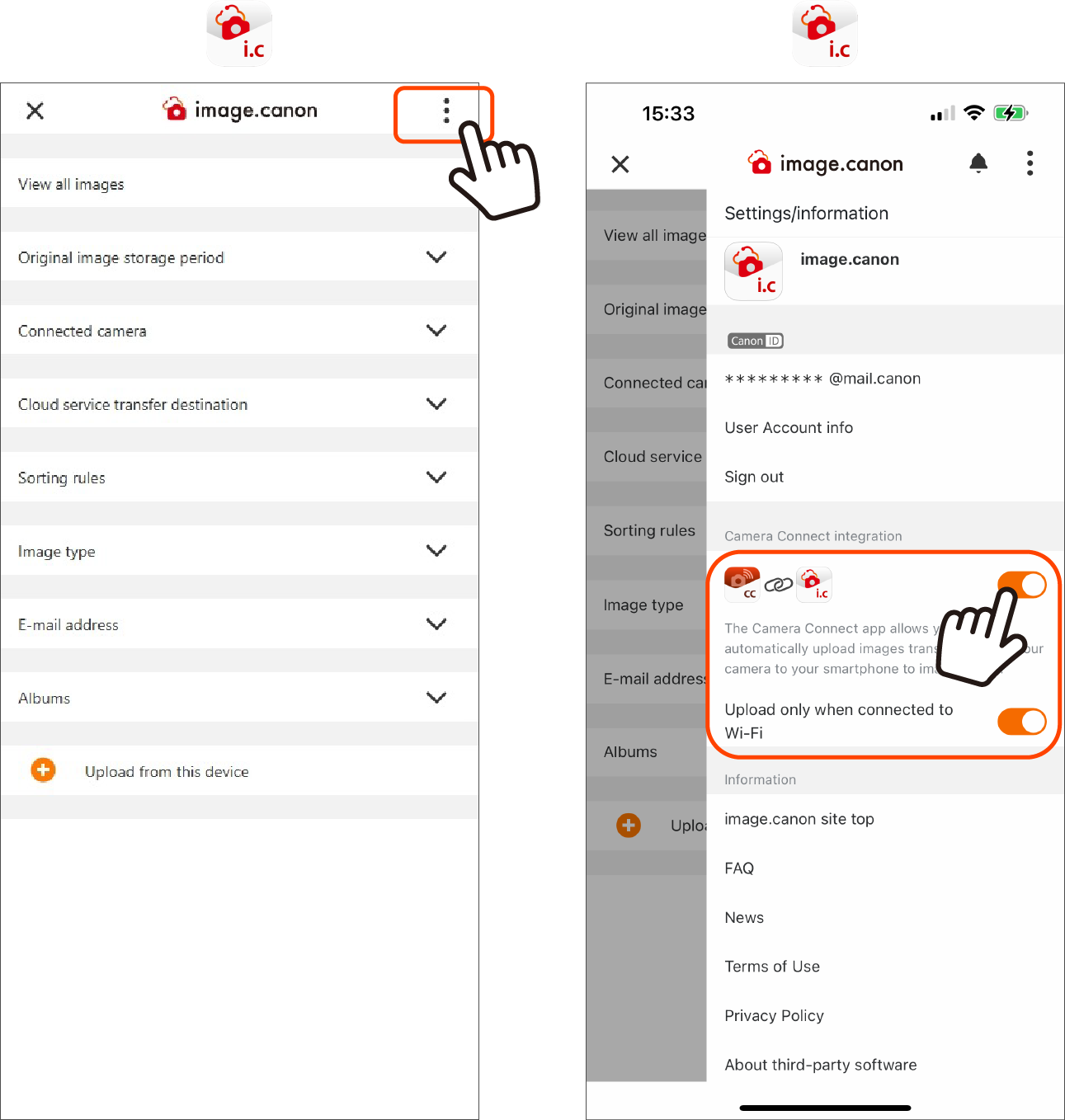
Easy setup in just two steps.
1. On the image.canon main menu screen, press [⋮] in the upper-right to open the side menu.
2. Under Camera Connect integration, turn the toggle switch ON. That’s it!
※ If you set [Upload only when connected to Wi-Fi] to OFF, photos will be uploaded automatically whether your smartphone is using mobile data or is connected to Wi-Fi via an access point.
*Please install the Camera Connect app on your smartphone and complete initial setup in advance.
Upload images imported with Camera Connect to image.canon
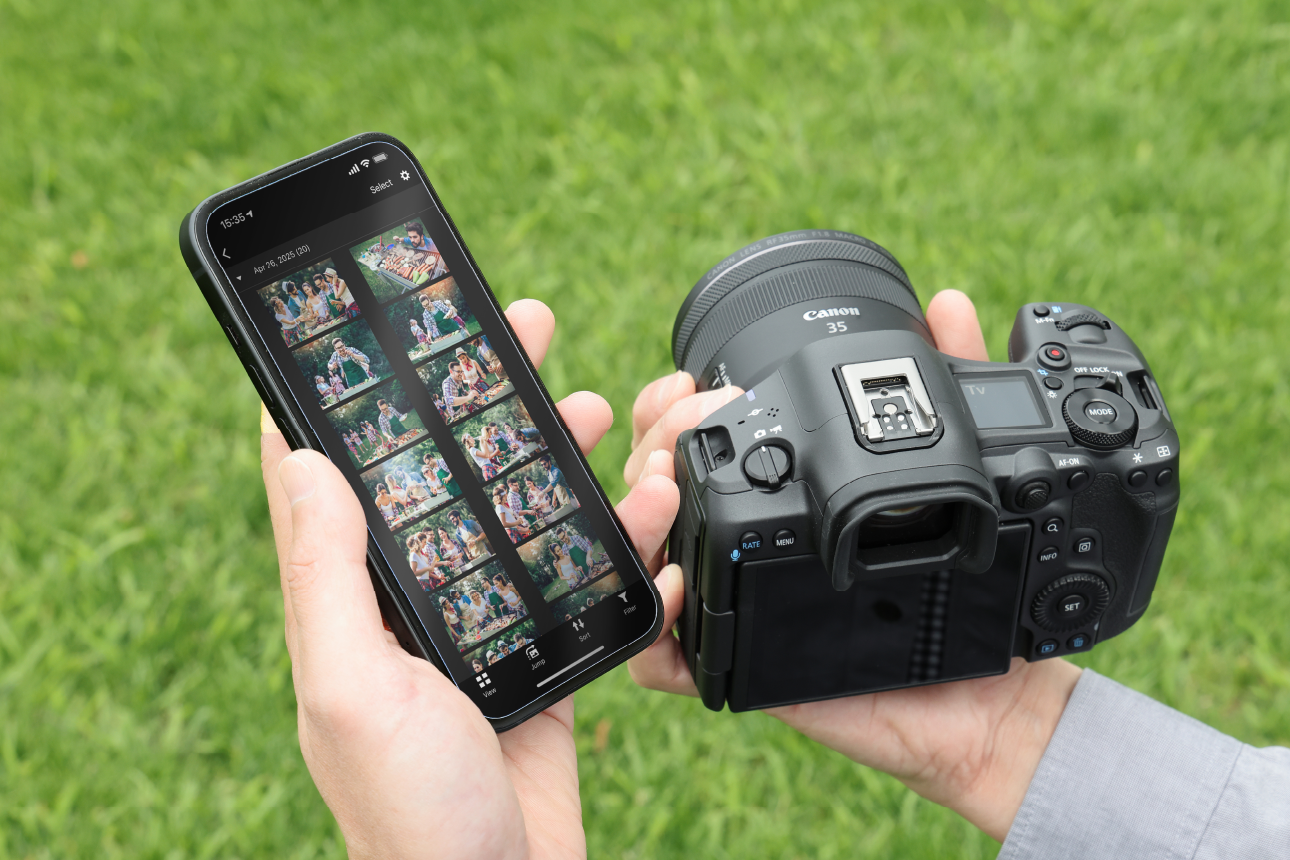
After import, the [Open image.canon app] button appears
1. Connect Camera Connect and the camera, then press [Import images] to display the data on the camera.
2. Press the [Select] button and select the data to import.
3. After the import is complete, the [Open image.canon app] button appears. Press it to launch the image.canon app and start uploading.