image.canon
Select region and language
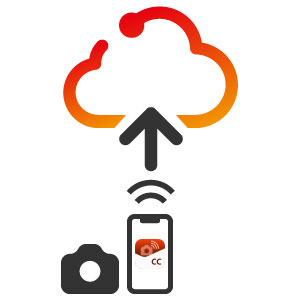
You can easily upload images to image.canon from Camera Connect app. image.canon automatically sorts uploaded images, and automatically transfers sorted images to external cloud services or downloads them to your PC.
Initial settings
image.canon settings
Log in to the image.canon app. Open
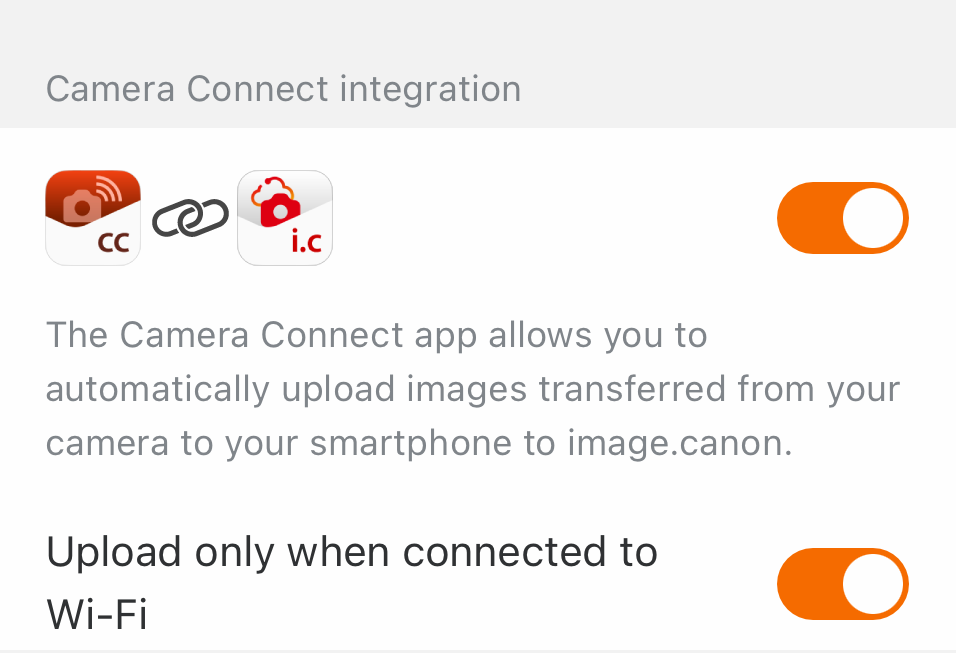
 and enable the [Camera Connect Integration] button.
and enable the [Camera Connect Integration] button.
If you disable [Upload only when connected to Wi-Fi], images will be uploaded automatically whether you are connected to Wi-Fi or via mobile data. Wi-Fi refers to the Wi-Fi connection between your mobile device and an access point.
Upload procedure
Ingesting images with Camera Connect app
The Camera Connect app connects to your camera and ingests images from the camera to your smartphone.
Press [Select] and choose the images you want to ingest to your smartphone.
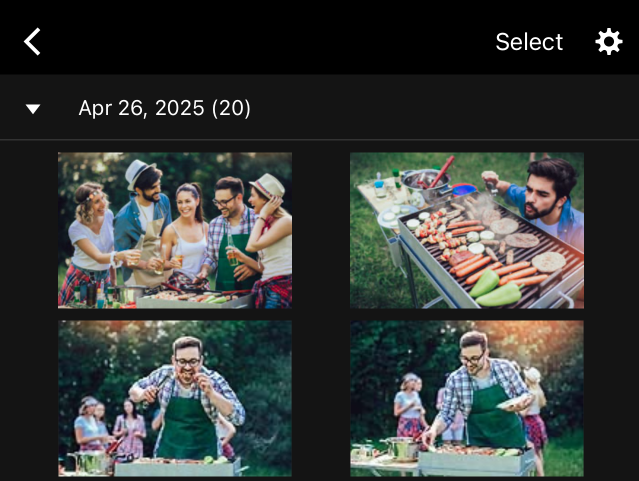
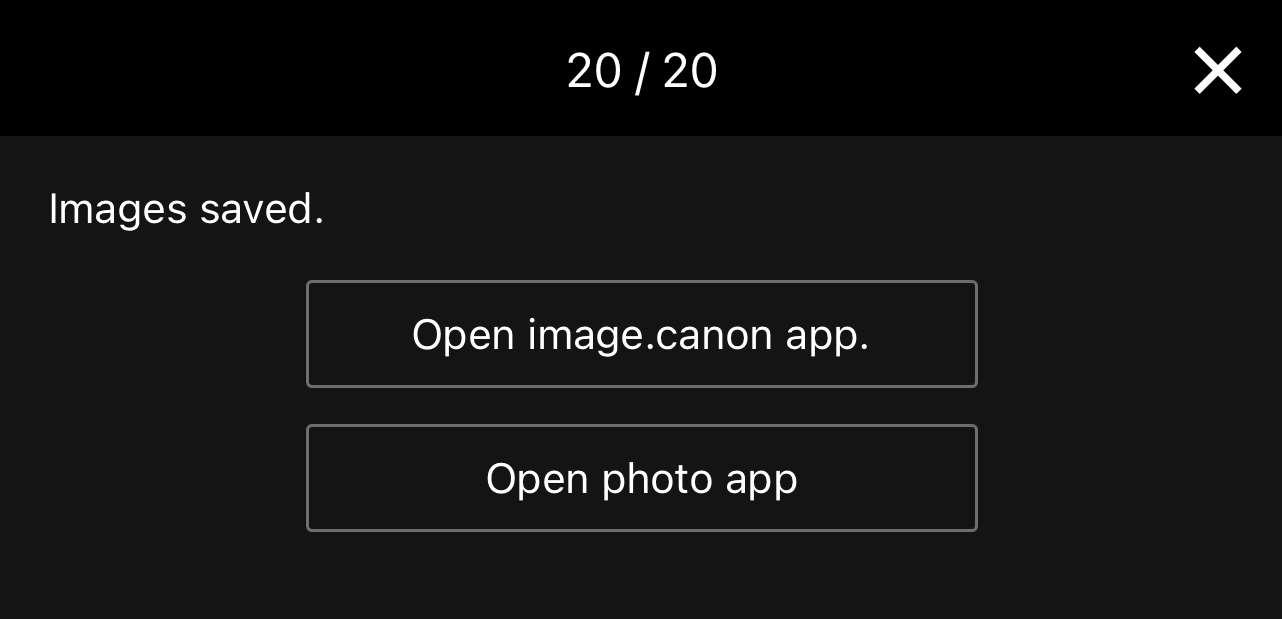
Once the images have been ingested, click [Open image.canon app].
Upload to image.canon
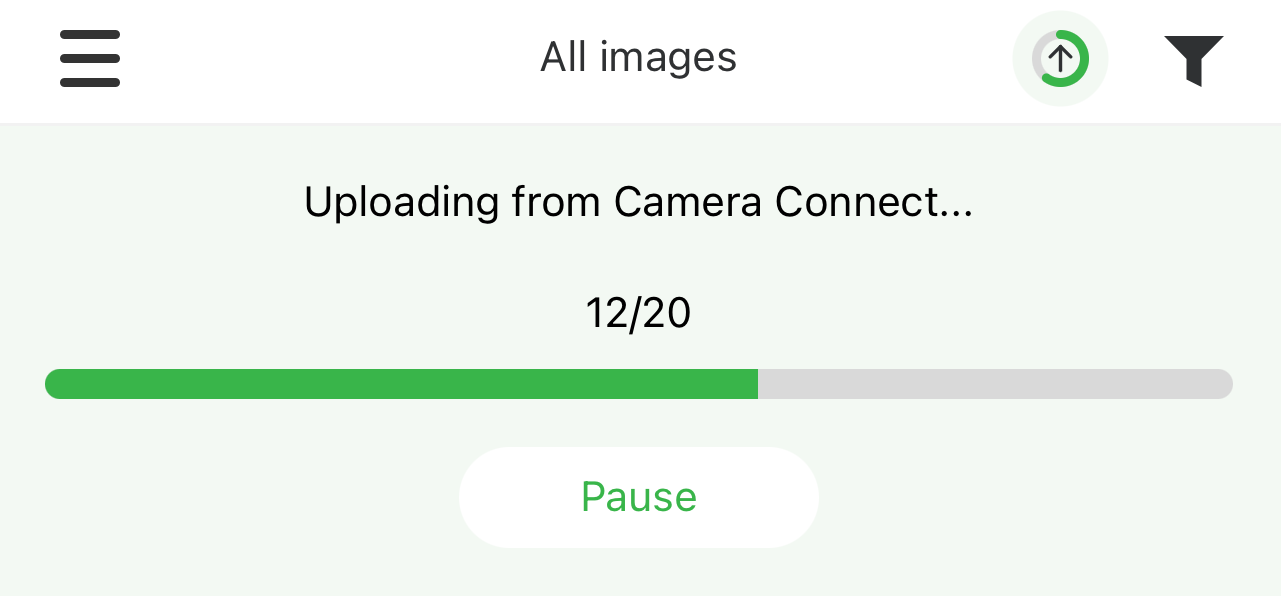
The image.canon app will launch and upload the ingested images to image.canon. Uploading will continue even if the image.canon app is moved to the background.